
Energy Sensor
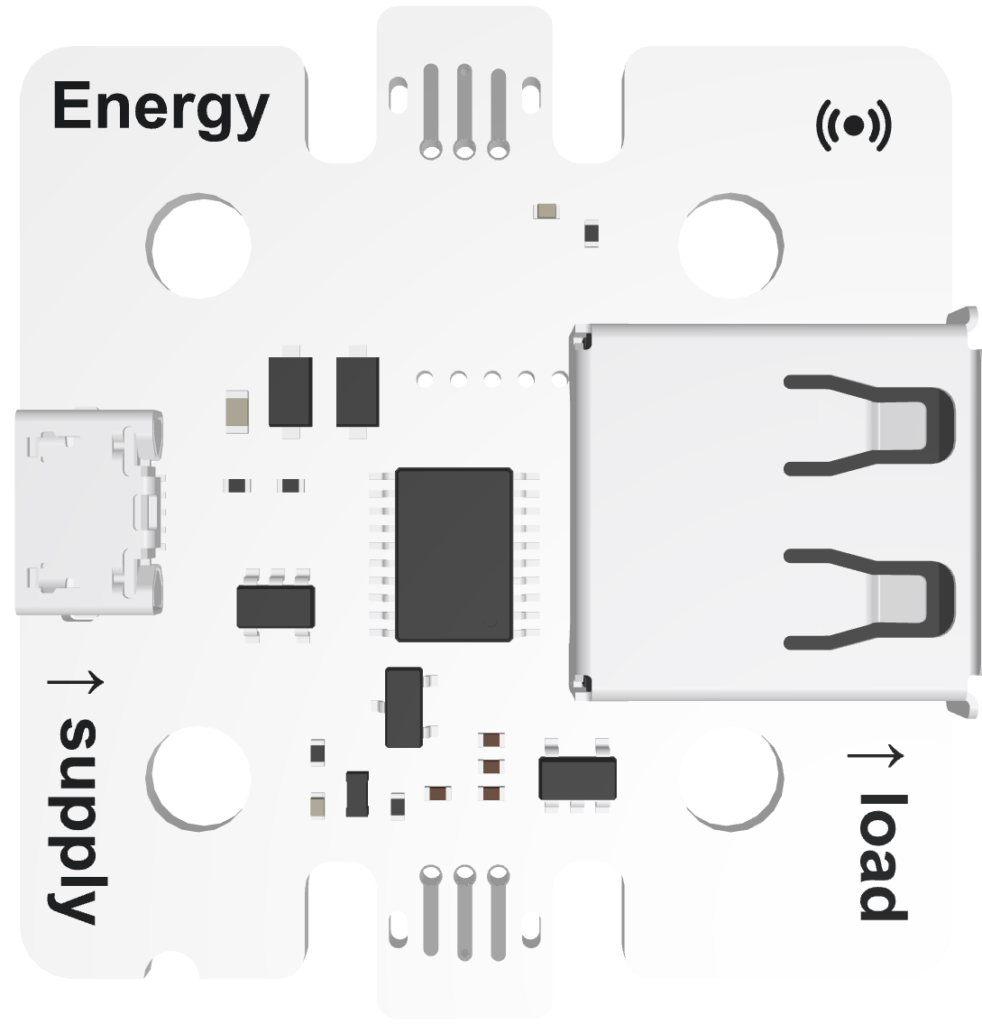
The Energy Sensor is a component in the Smart Solar Energy Kit. It measures electrical energy (supply) and can charge or power electronic components (load).
Connect this sensor to any of the breakout board’s sensor ports, or daisy-chain it to another sensor using the black reversible JACDAC cable.
MakeCode Extension
Each time you use this sensor, you’ll need to add the extension to your MakeCode project.

Create a new MakeCode File, and select the Extensions drawer from the toolbar.
Search for smart-solar by Forward Education, and add it to your project.
Real-Time Simulators
Voltage (V)
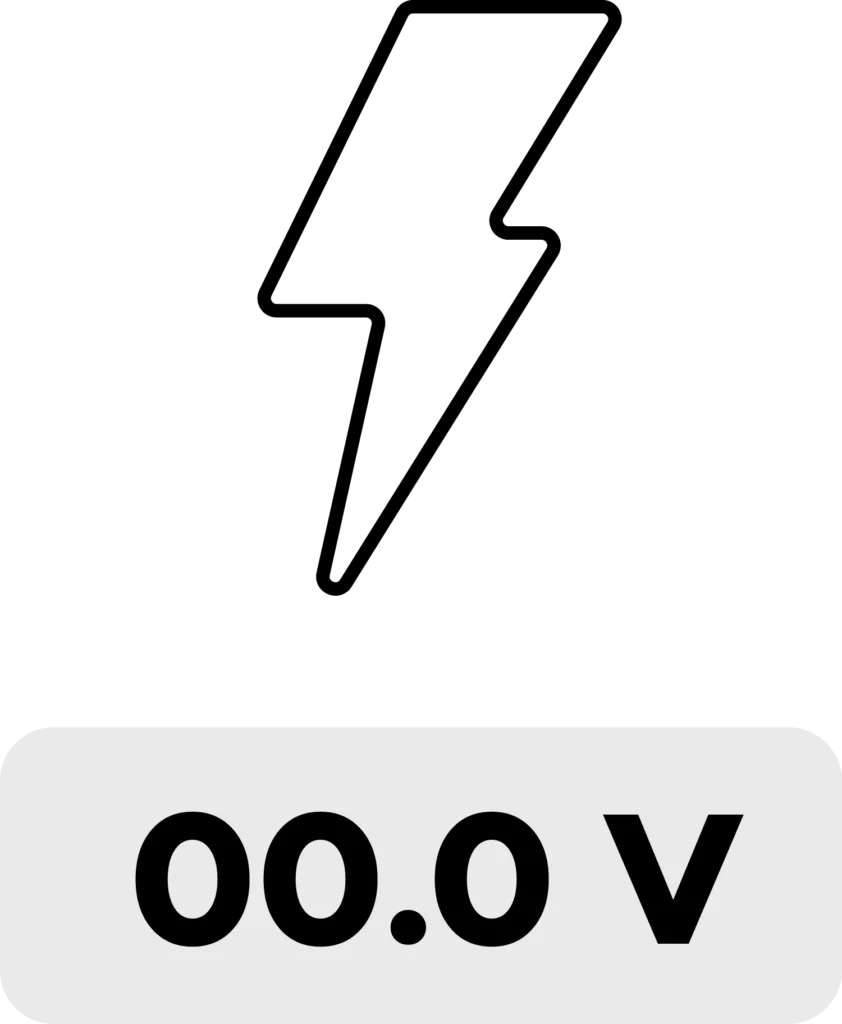
The voltage (V) blocks and the real-time simulator in MakeCode will only display a value above 0 V while a power supply is plugged into the energy sensor.
Current (mA)
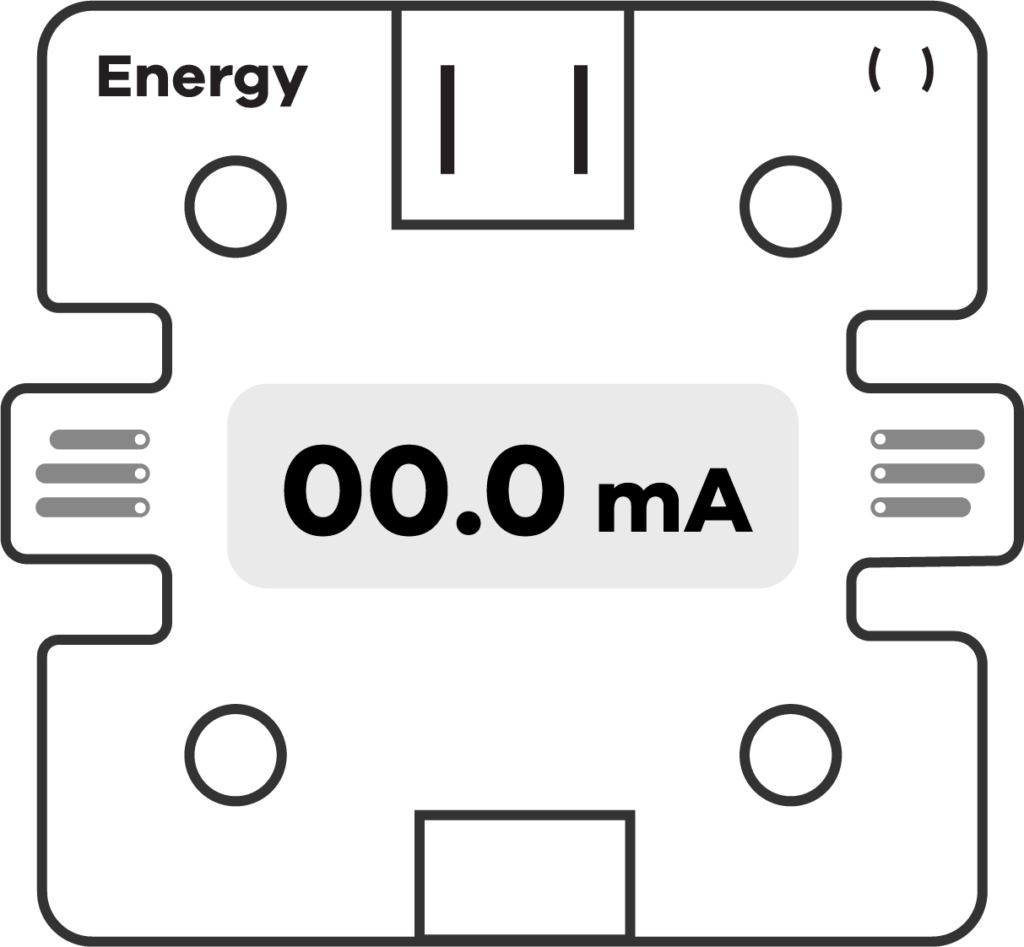
The current (mA) blocks and the real-time simulator in MakeCode will only display a value above 0 while:
- Both a power supply and a load device are plugged into the energy sensor
- The voltage (V) from the power supply is high enough to power the load device.
Activity – Testing Simulators
Connect your energy sensor to the sensor port on your breakout board. Attach the following to the ports on the energy sensor:
- Supply (microUSB): Solar panel
- Load (USB): Breakout board charging port
Download blank code to your micro:bit. While still connected to your computer, watch how the current (mA) and voltage (V) simulators respond to changes in sunlight.
The solar panel must provide 4.25 V or more to begin charging the breakout board. The current (mA) will remain at 0 mA until then.
When the power supplied by the solar panel exceeds 4.25 V, the red charging light on the physical breakout board will dimly glow. In MakeCode, the live simulator, and any current (mA) blocks will display real-time current values above 0 mA.
Sensor Blocks

From the toolbar, select the Sensors drawer, and scroll to the Energy category.
The blocks in this category measure electrical input and output when plugging objects into the sensor.
Voltage is Over/Under Value (V)

A boolean block, which returns true or false compared to a user-selected value (a number). By default, the user-selected value is equal to 0.
The block only returns a value when a power supply (e.g. solar panel) is plugged into the supply side of the sensor using a micro USB cable.
Over
False: The voltage (V) is less than the selected value.
True: The voltage (V) is greater than the selected value.
Under
True: The voltage (V) is less than the selected value.
False: The voltage (V) is greater than the selected value.
Voltage (V)
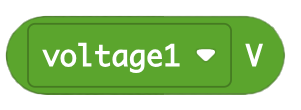
A reporter block, which stores the value of voltage, in volts.
The block only returns a value when a power supply (e.g. solar panel) is plugged into the supply side of the sensor using a micro USB cable.
Current is Over/Under Value (mA)

A boolean block, which returns true or false compared to a user-selected value (a number). By default, the user-selected value is equal to 0.
The block only returns a value when:
- Both a power supply (e.g. solar panel) and a load device (e.g. breakout board) are plugged into the energy sensor
- The voltage (V) from the power supply is high enough to power the load device.
Over
- True: The current (mA) is greater than the selected value.
- False: The current (mA) is less than the selected value.
Under
- True: The current (mA) is less than the selected value
- False: The current (mA) is greater than the selected value
Current (mA)
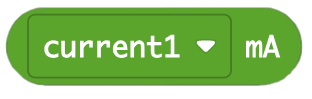
A reporter block, which stores the value of current, in milliamps.
The block only returns a value when:
- Both a power supply (e.g. solar panel) and a load device (e.g. breakout board) are plugged into the energy sensor
- The voltage (V) from the power supply is high enough to power the load device.
Related Content
-
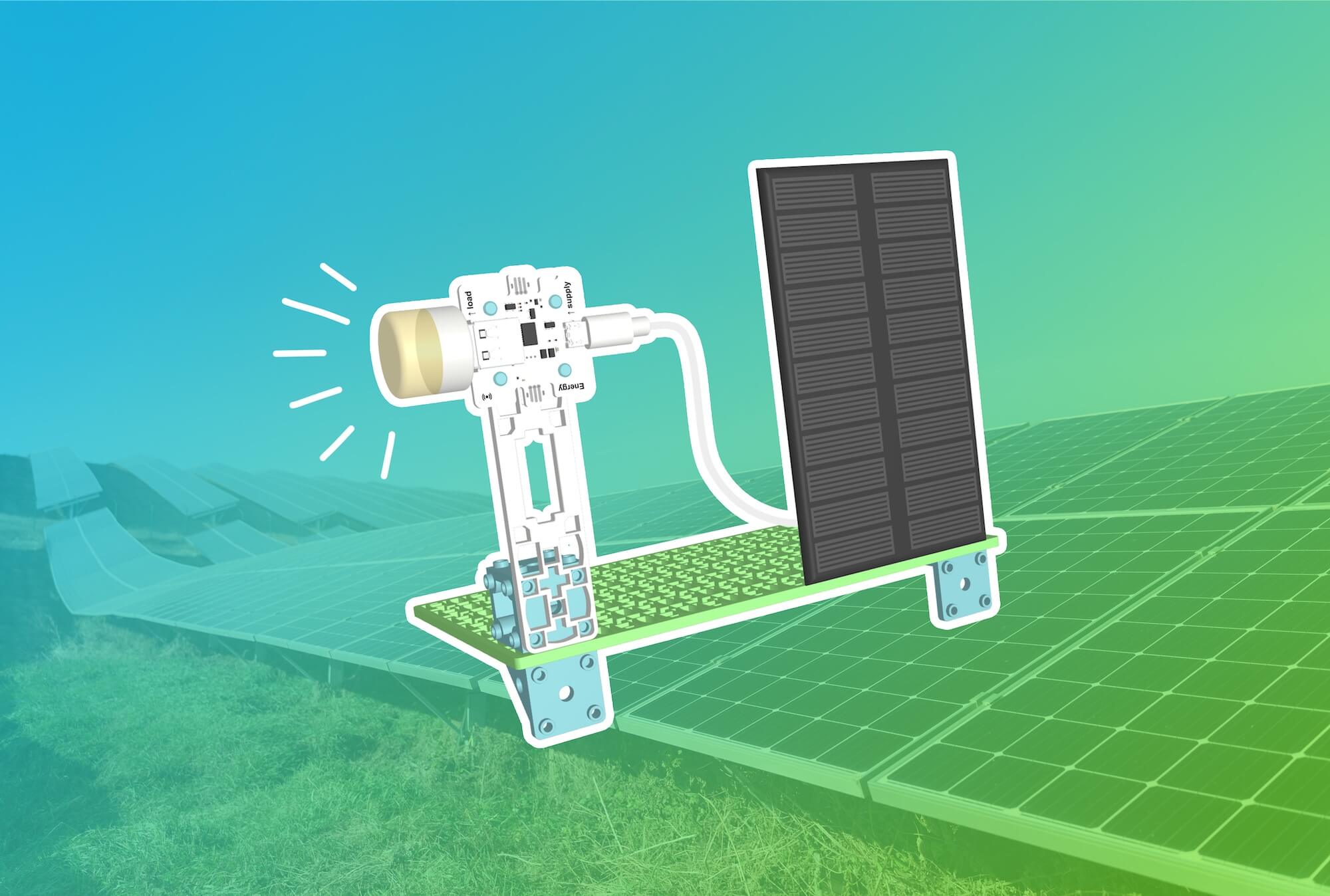
Solar-Powered USB Device
Watch your solar panel power a small device in real-time using the Smart Solar Energy Kit! -
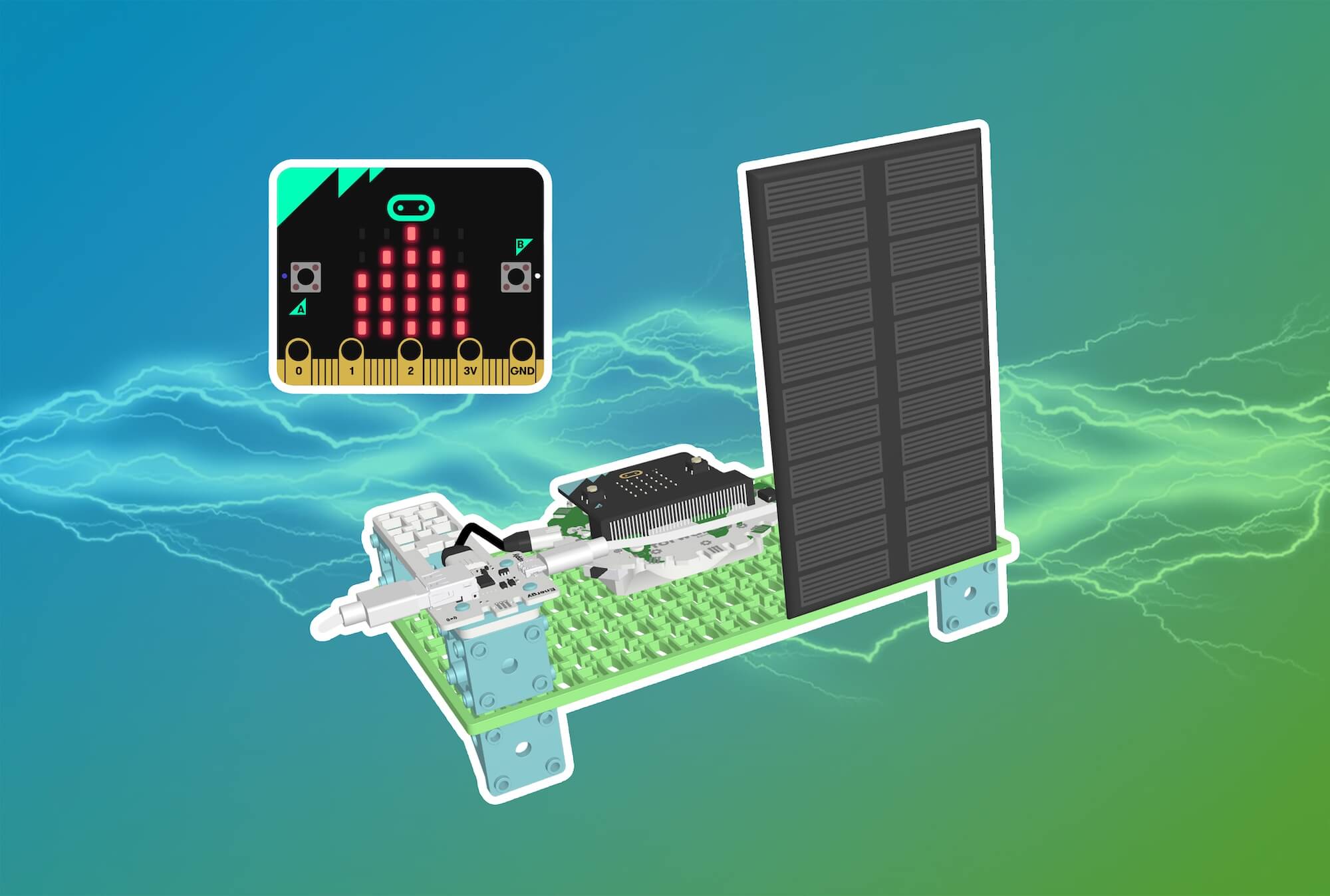
Visualize Electricity Flow with a Current Monitor
Build a monitor for your solar panel to see how much current is being generated in real-time! -
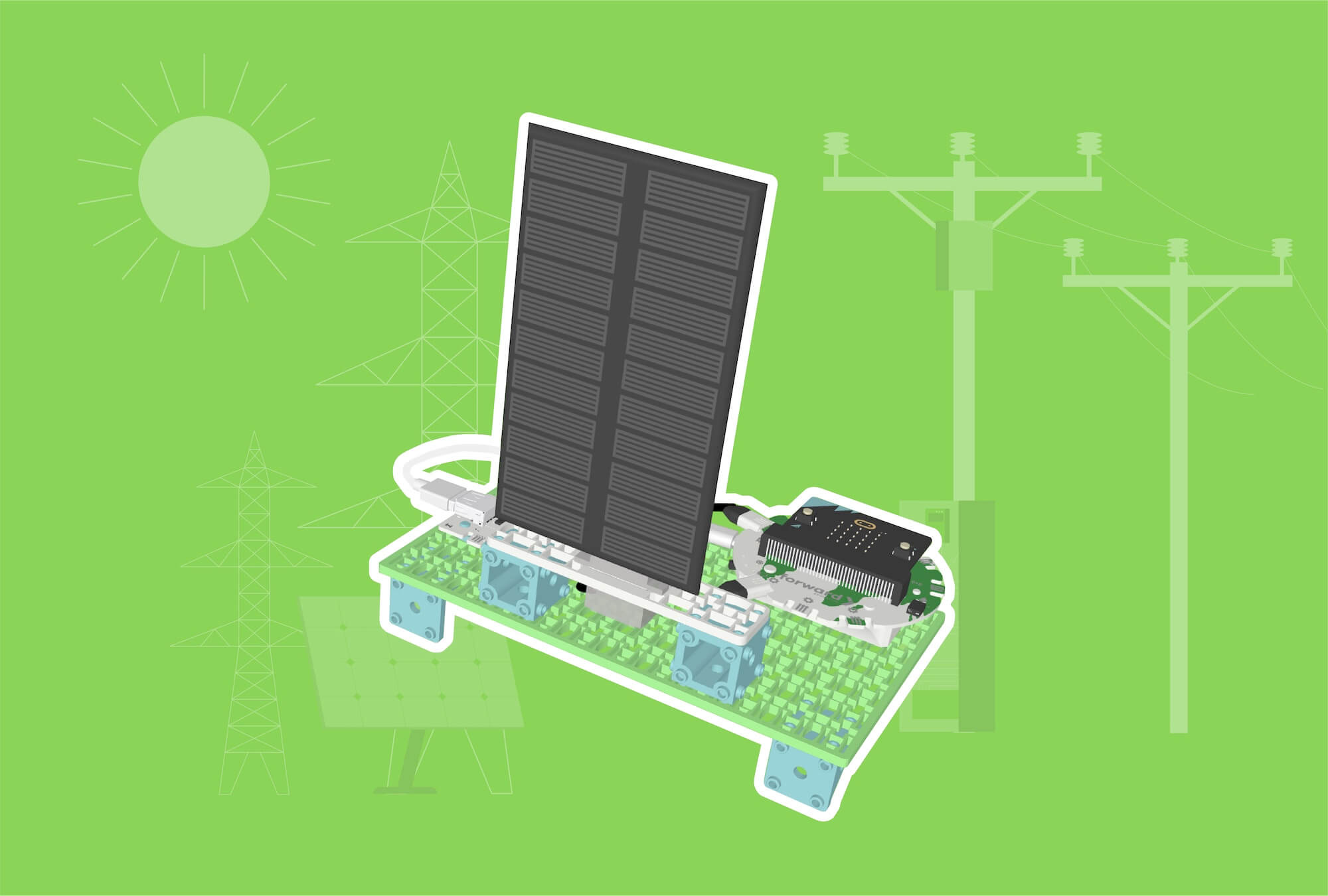
Sun-Tracking Solar Panel
Build a working sun-tracking solar panel to optimize power generation!
Feeling Stuck? Explore the Knowledge Base for common questions and troubleshooting tips.